DISCLAIMER:
You must follow these instructions exactly. No skimming. No skipping steps. No "I know I know I know blah blah blah." NO. READ EVERY STEP THOROUGHLY.
Getting G-Earth Running
- Download and install the FULL JDK (Java 8). You must scroll down and select the full JDK from the drop-down menu and then select .msi on the right: BellSoft JDK 8 downloads.
- Reboot your computer.
- Download G-Earth and place it in a folder of your choosing: G-Earth releases.
- Close Habbo.
- Run the G-Earth .exe.
- In G-Earth, disable Auto Detect, set the host to US Habbo, then click Connect.
- Re-open Habbo. You should see Connected in the lower-left box.
- To install extensions: open the Extensions tab and press the play button next to G-ExtensionsStore.
- Have fun!
Recommended Extensions
- G-Presets
G-Earth Launching Issues
If after following the above (Did you install the FULL JDK 8 from the link above? Did you reboot?) you still have issues launching G-Earth, try saving the following code as a .bat file in the same folder as G-Earth:
@echo off
REM ======================================================
REM  Launch G-Earth.jar using LibericaJDK-8-Full (with JavaFX)
REM  Always runs as Administrator
REM ======================================================

REM --- Check for admin rights ---
net session >nul 2>&1
if %errorLevel% neq 0 (
    echo Requesting administrator privileges...
    powershell -Command "Start-Process '%~f0' -Verb RunAs"
    exit /b
)

REM --- Path to your Liberica JDK installation ---
set "JAVA_HOME=C:\Program Files\BellSoft\LibericaJDK-8-Full"

REM --- Path to your G-Earth.jar file (same folder as this script) ---
set "APP_PATH=%~dp0G-Earth.jar"

REM --- Launch the app ---
echo Launching G-Earth as Administrator using %JAVA_HOME% ...
"%JAVA_HOME%\bin\java.exe" -jar "%APP_PATH%"

echo.

echo Program finished. Press any key to exit.

pause >nul
How to save a .bat file:
- Open Notepad.
- Copy and paste the above code into Notepad.
- Click File > Save As...
- In the "Save as type" dropdown, select "All Files (*.*)".
- Name the file something like launch-gearth.bat and save it in the same folder as G-Earth.exe.
- Double-click the .bat file to run G-Earth.
If the bat says it can't find the JDK, try changing "Program Files" to "Program Files (x86)" in the JAVA_HOME path.
Presets Settings
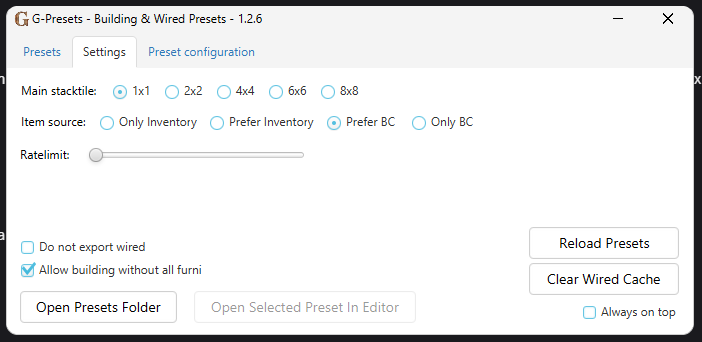
*set main stacktile to 2x2
Tips:
- Drop a 1x1, 2x2, and 4x4 stack tile in the room to help with placing larger items.
- Toggle prefer BC
- Keep the ratelimit low to avoid furni being misconfigured
- Export does not always work perfectly - some items may be misaligned (rotation is the main issue)
- :ep exports a preset - it will ask you for the start and end of a rectangular area, as well as a
name for it.
- I recommend categorizing your presets because the UI isn't that great.
- :ip imports a preset - it will ask you to click an empty tile and then the tile where you to place
the preset.
- Make sure there is enough space for the preset to fit
- The preset gets built out from the room origin (the room corner at the top of your screen)
- :ep all will export an entire room, :ip 0,0 will import an entire room
- Make sure the room has all the appropriate tiles needed
- Stay out of the way of where furni is going to be placed - normal placing rules still apply
- Turn off all room area hiders while room is being built
- Building directly next to walls, stairs, or floor elevation changes sometimes glitches
Happy building!